Importer Reference
Asset Compatibility and Workarounds
Review the asset patterns that work best with the importer and the practical workarounds for common problem files.
What Works Well
- Standard glTF 2.0 Compliant Files: Assets that follow the Khronos glTF 2.0 specifications import reliably
- Geometry and Materials: Meshes, PBR materials, and textures import correctly
- Animations: Transform animations, skeletal (rigged) animations, and blendshape animations are fully supported
- Standard Exporters: Files from widely-used glTF exporters (Blender, Maya/Babylon, etc.) are well-supported
Recommended Workarounds
For Assets Using BasisU or KTX2 Textures
- The importer supports
KHR_texture_basisuby transcoding BasisU or KTX2 textures to Maya-friendly image files during import. - When such textures are detected, Maya shows an upfront warning so this workflow is explicit before materials are created.
- This is a good fit when you want the asset to look correct in Maya, but it is not the best choice for strict round-trip texture editing because the Maya scene will reference transcoded images rather than the original compressed KTX2 payload.
- If round-trip texture fidelity matters more than delivery-size optimization, prefer source assets that keep textures in PNG, JPEG, or WebP, or re-export the asset without KTX2 compression before importing into Maya.
For Sketchfab Assets with Rigged Animations
If you experience deformation accuracy issues with auto-generated Sketchfab assets:
- Ensure Import Skin Binding is enabled: Rigged assets require skin binding to be imported.
- If Issues Persist: Use the Blender preprocessing workflow below to normalize the rig/export.
Alternative Blender Preprocessing Workflow
- Import into Blender: Import the original Sketchfab glTF/GLB file into Blender
- Select Rigged Meshes: In the Outliner, select all meshes that have skin weights applied (identify these by looking for Vertex Groups in the mesh properties)
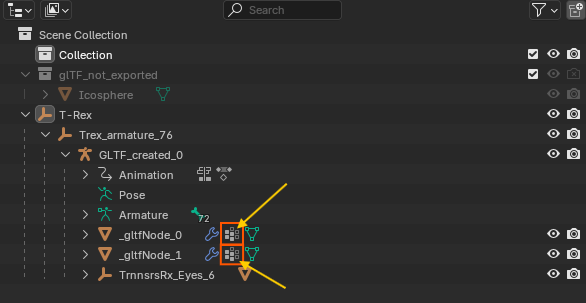
- Clear Parent Relationship: Press
Alt + Pand choose "Clear and Keep Transformation" - Re-export: Export the file in glTF/GLB format from Blender
- Import into Maya: The processed file should now import correctly into Maya
Alternative Sketchfab Workarounds:
- Disable Complex Features: If you're experiencing issues with rigged or animated Sketchfab assets, you can disable the following options all at once in the import dialog:
- Import Skin Binding: Disable to import only static geometry without skeleton/deformation data
- Import Blendshapes: Disable to skip blendshape targets
- Import Animations: Disable to import only static meshes without animation keyframes
-
This approach imports only the base geometry and materials, allowing you to work with static meshes and avoid potential deformation or animation issues
-
Manual Orientation Correction: Manually adjust object transforms after import
-
Re-rigging: Consider re-rigging complex characters in Maya after import
-
Animation Recreation: For critical animations, recreate keyframes manually in Maya
General Best Practices
-
Test Import: Always test import with a simple version of your asset first
-
Backup Projects: Maintain backups of your Maya scenes before importing complex assets
-
File Validation: Use glTF validators to check file integrity before import
-
Alternative Sources: When possible, obtain assets from sources that use standard glTF exporters
-
Asset Preparation: For complex assets, consider simplifying or optimizing them before import
Round-trip Workflow: Re-exporting Imported Assets
If you import a glTF or GLB file and then want to export it again with this plug-in's built-in exporter, you can keep much more of the scene intact than the older Babylon-based workflow allowed. The main requirement is to choose import options that preserve data in an exporter-friendly form.
Recommended Import Settings for Round Trip
- Use file/place2dTexture texture nodes: Keep this enabled so texture placement, rotation, and UV-set assignments can be read back by the exporter for
KHR_texture_transformworkflows. - Import Materials: Keep this enabled if you want to preserve imported material networks and variants.
- Import Quads: Enable this only when the source asset was exported with Maya quad-topology metadata and you intend to continue a Maya-to-glTF round-trip.
- Import Gaussian Splats: Leave this enabled if your scenes contain
KHR_gaussian_splattingcontent and the externalgaussianSplatplug-in is installed and loaded. - BasisU or KTX2 textures: Prefer uncompressed or artist-friendly source textures when texture round trip matters, because BasisU or KTX2 assets are transcoded on import.
For Assets with Animation Clips
- The exporter supports Time Editor Clips directly.
- If you imported animation clips and want to preserve that clip structure, export with Animation > Export Animation = Time Editor Clips.
- If you prefer a flatter result for downstream tools, export with Baked instead.
Material and Variant Round Trip
- Imported material variants can be re-exported when the scene still contains the variant authoring metadata and the alternate materials have not been deleted.
- Avoid deleting unused shading nodes if you plan to export material variants later, because variant materials may not be assigned to geometry at every moment.
- Stingray remains the simplest material target for compatibility-oriented workflows, but Standard Surface, Arnold, and OpenPBR can also be re-exported by this plug-in.
Gaussian Splat Round Trip
- Import and export of
KHR_gaussian_splattingrequires the externalgaussianSplatplug-in. - On import, gaussian splat primitives are skipped when the plug-in or payload-import support is unavailable.
- On export, gaussian splat shapes are skipped when the export bridge is unavailable.
Suggested Workflow
- Import with Use file/place2dTexture texture nodes enabled.
- Keep Import Materials, Import Animations, and Import Blendshapes enabled if you need a full round trip.
- Make your Maya edits.
- Export with the built-in glTF2.0 Export translator.
- Choose Time Editor Clips when you want to preserve imported clip organization, or Baked when you want a simpler exported result.
For exporter-specific guidance, see the Exporter Round-Trip Workflow page.
Troubleshooting Tips
Asset Source Recommendations
- Recommended: Use assets from the Khronos Sample Assets repository for testing
- Reliable: Assets exported from Maya using Babylon exporter or Assets exported from Blender using the built-in glTF 2.0 addon
- Caution: Sketchfab auto-generated assets may require preprocessing
Export Guidelines
- Validate the exported file when you are targeting strict runtimes or engines.
- Prefer Time Editor Clips for preserving clip structure and Baked for maximum downstream simplicity.
- Keep variant materials and related metadata intact when material-variant round trip matters.
Additional Resources
- Khronos glTF Sample Assets - Official test assets
- glTF Validator - Online validation tool
- glTF 2.0 Specification - Official documentation
- Exporter Round-Trip Workflow - Built-in exporter guidance